

Last updated: October 14, 2026
Google Slides lets you collaborate with others in your organization to create business presentations. With Google’s continuous delivery of new features, there are always new ways to make your presentations more effective — and in 2025 and 2026, many of those new features came from Gemini.
The short version: set your look once with the theme editor, learn a handful of keyboard shortcuts, link charts and slides instead of copying them, and let Gemini handle first drafts of slides and images. Then present, share, or record your deck without leaving Slides.
Here are the tips and tricks we use for getting more out of Google Slides — whether you are using Slides with your Gmail account or your organization’s Google Workspace account.
- Design and layout tips
- Work faster in Google Slides
- Gemini in Google Slides (2025–2026)
- Present and share your slides
- Frequently asked questions
Design and Layout Tips
Set Your Look Once with Slide > Edit Theme
Changing fonts and colors one slide at a time is slow, and it’s how decks end up inconsistent. Start by picking a theme from Slide > Change theme. If your company already has a branded deck, click Import theme at the bottom of the Themes panel and choose that presentation.
Then use Slide > Edit theme to adjust the theme’s colors and the layouts your slides are built from. Changes made there carry through to every slide that uses the theme, so you make them once instead of on every slide. Google’s help page on themes, backgrounds, and layouts has the details.
Use Image Masking to Modify the Shapes of Images
You may want to change the shape of an image that’s embedded within a slide. A simple use case is rounding the sharp corners of a photo.
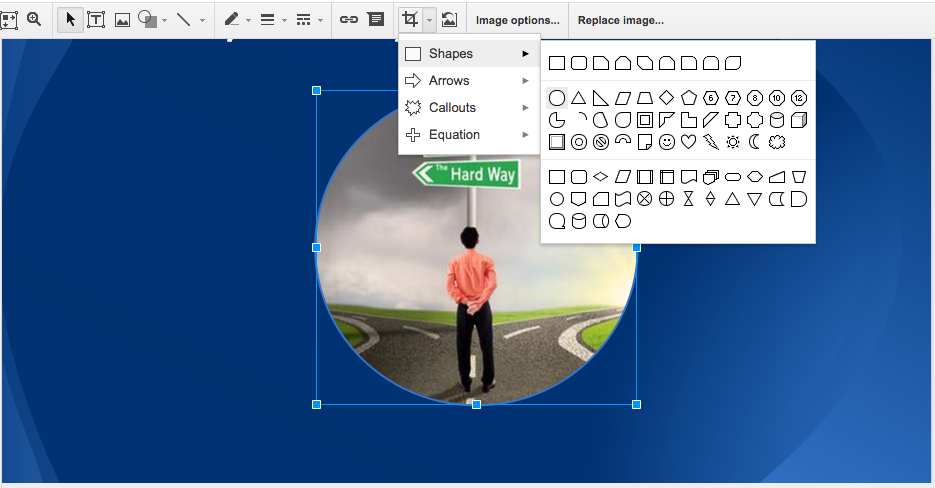
Select an image within a slide and then click on the Mask image arrow to the right of the crop tool. You can then change the image to match any of the available shapes. Start with the Rounded Rectangle shape.
Once the shape has been selected, you can use the image handles and/or the crop tool to fine-tune the shape. (Google covers this in Crop & adjust images.)
Create a Translucent Text Bar or Circle On Top of an Image
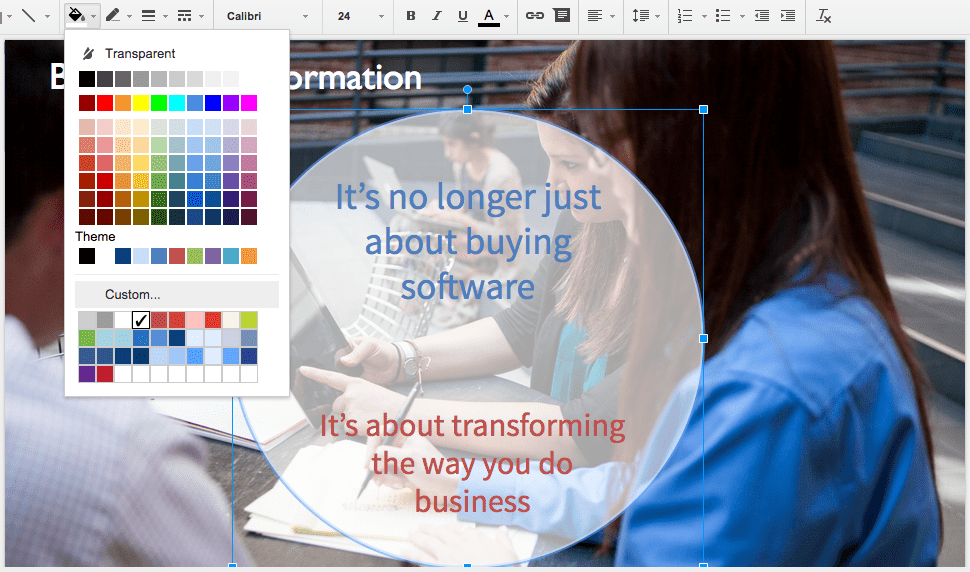
A translucent bar or circle can make overlaid text on an image appear more prominent.
Select either the text box or the shape behind the text, then click the Fill color tool. Under Custom, click the + (Add) button.
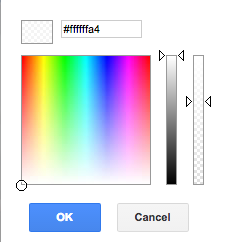
In the custom color box, select an off-white color, such as #ffffffa4, and drag the transparency slider down by about a third.
Add a Drop Shadow to Text
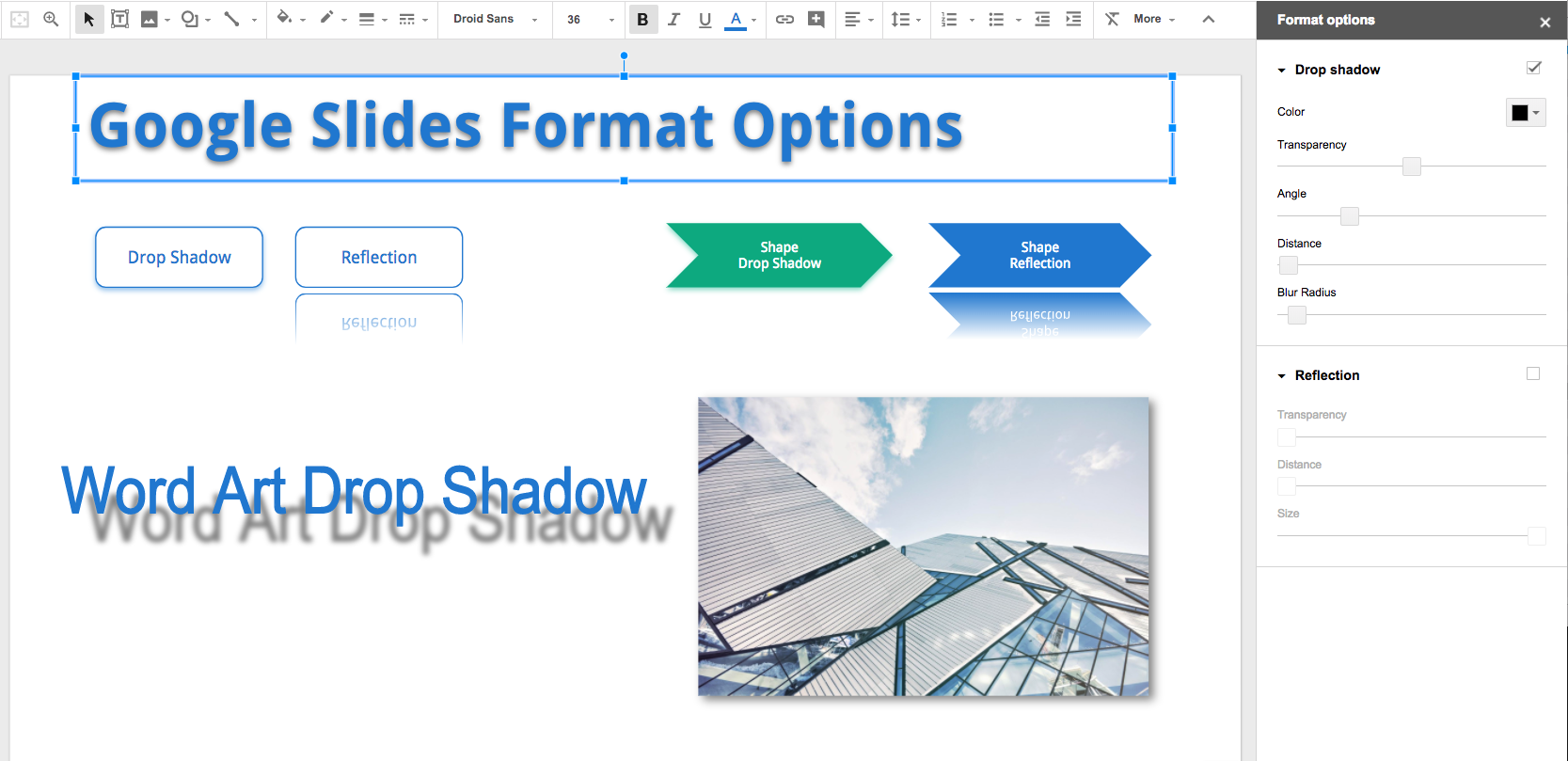
Add drop shadows to images, text, word art, and shapes. Simply select the item and then choose Format > Format options (or right-click and choose Format options). Turn on Drop shadow in the panel that opens, then adjust it to taste.
Copy Formatting to Multiple Objects
You can copy formatting from one object to multiple objects in Slides with the paint format tool. From the keyboard, Ctrl + Alt + C copies the formatting of the selected text or shape and Ctrl + Alt + V pastes it (⌘ + Option + C / V on a Mac).
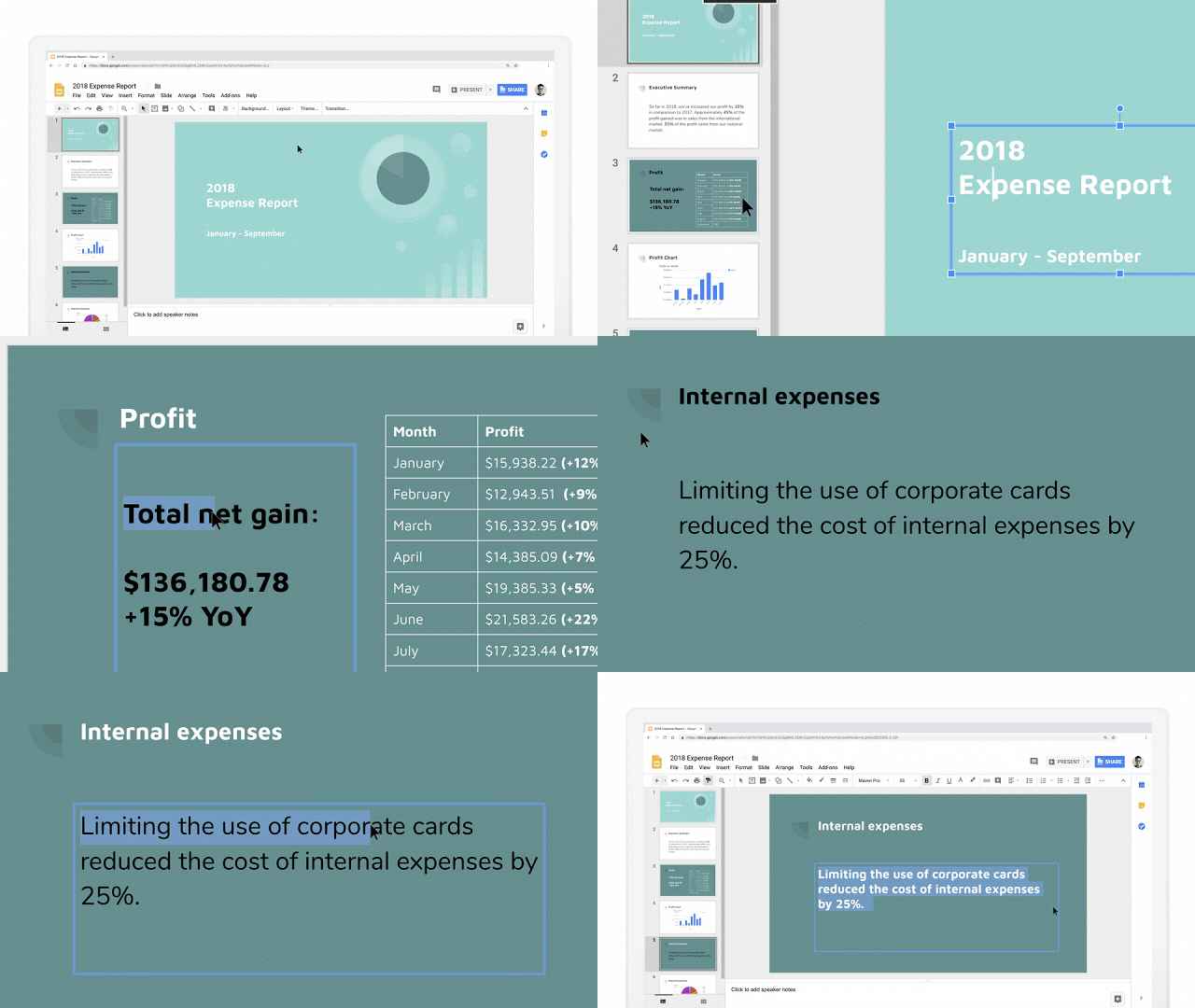
Add GIFs and Stickers
In November 2023, Google introduced the ability to add GIFs and stickers in Google Slides. Select Insert > Image > GIFs and stickers, search in the panel that opens, and filter by GIFs or stickers. We cover more options in how to add a GIF to Google Slides.
Work Faster in Google Slides
Learn the Keyboard Shortcuts That Matter
A few shortcuts save a surprising amount of time. Press Ctrl + / (⌘ + / on a Mac) in Slides to see the full list, or check Google’s keyboard shortcuts for Google Slides.
| Action | Windows / ChromeOS | Mac |
|---|---|---|
| New slide | Ctrl + M | Ctrl + M |
| Duplicate slide | Ctrl + D | ⌘ + D |
| Copy / paste formatting | Ctrl + Alt + C / V | ⌘ + Option + C / V |
| Insert comment | Ctrl + Alt + M | ⌘ + Option + M |
| Open speaker notes panel | Ctrl + Alt + Shift + S | ⌘ + Option + Shift + S |
| Tool finder (search the menus) | Alt + / | Option + / |
| Present | Ctrl + F5 | ⌘ + Enter |
| While presenting: speaker notes, audience tools, laser pointer, black screen | S, A, L, B | S, A, L, B |
Import or Link Slides from Other Presentations
Don’t rebuild a slide you already have. Use File > Import slides, pick the presentation, select the slides you want, and click Import slides. Uncheck Keep original theme if you want the imported slides to take on your current theme.
For slides that change — a company overview or a pricing slide, for example — link them instead. Copy the slides in the source deck, paste them into the other deck, and choose Link slides. When the source changes, you can update the linked copies. Google explains how in Link a chart, table, or slides.
Link Charts and Tables from Google Sheets
Select Insert > Chart > From Sheets to add a chart from a spreadsheet. A range of cells can also be copied from a Google Sheet and pasted into a slide as a linked table. When the data in the spreadsheet changes, an Update button appears on the chart or table in Slides. That’s a big time saver for monthly or quarterly reporting decks; see our post on presenting data in Google Slides.
Upload Your Stock Images to a Google Drive Folder For Shared Access
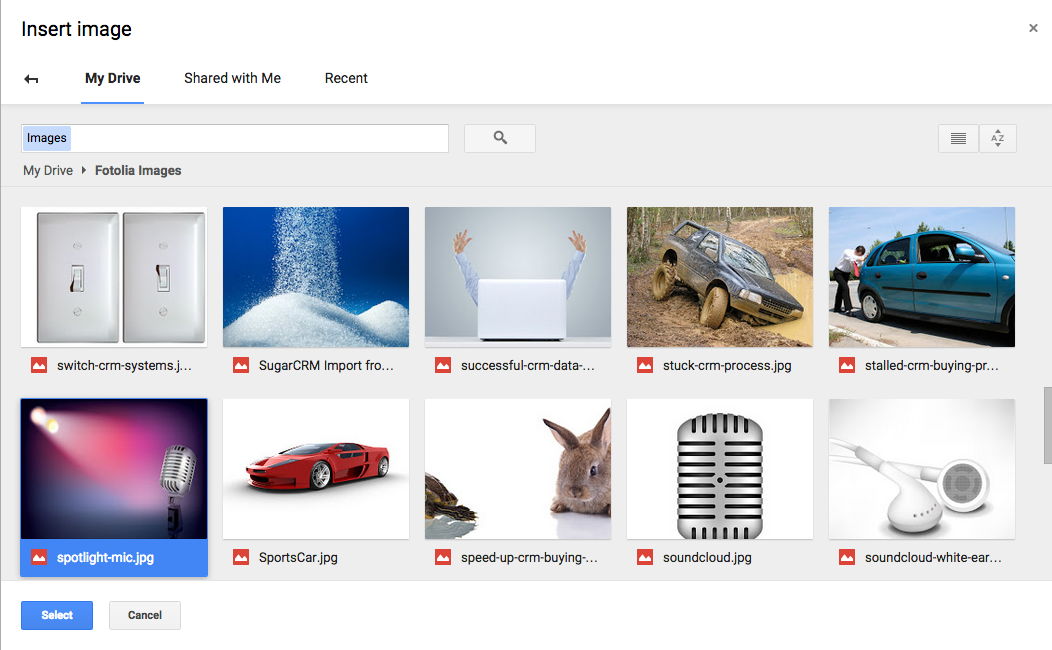
If you want others within your organization to easily access your stock images inventory for inserting into their Slides presentations, you can add the images to a Google Drive folder and then share that folder with others in your organization.
Select Insert > Image from the menus to insert images from a folder — or click the Image icon. Then click on Google Drive.

Navigate to the shared folder that contains the stock images, click on an image, and then click the Select button.
Use Version History Instead of “Copy of Final v2”
Slides saves your changes automatically, and every earlier version is available. Click Last edit at the top right to open version history, where you can see who changed what, restore an earlier version, or make a copy of it. To mark milestones such as “Sent to client,” choose a version, click More and then Name this version. Google’s version history help page has the steps.
Gemini in Google Slides (2025–2026)
Google has added a series of Gemini features to Slides over the past year. Most of them are available on Google Workspace Business Standard and Plus, Enterprise Standard and Plus, and Google AI Pro and Ultra subscriptions; check our Google Workspace pricing post for what each plan includes. As with any AI-generated content, review the text, data, and images before you share the deck. For more on Gemini across Workspace, see Gemini for Google Workspace.
Generate a Full Presentation from a Prompt
Since June 2026, Gemini can create a full, multi-slide presentation with editable slides. Start from a blank presentation and click Ask Gemini, then describe the deck you need. You can add reference files from Google Drive and attach an existing deck as a style reference so the result matches your brand.
Gemini first asks follow-up questions and proposes a presentation plan, which you can edit before you click Approve. The feature launched in English only, and Google said per-user usage limits would apply after a promotional period that ran through at least August 1, 2026. See Generate presentations with Gemini in Google Slides.
Generate or Enhance a Single Slide
In an existing presentation, click Ask Gemini and describe the slide you want. Gemini generates one slide at a time, which you can insert as a new slide or use to replace the selected one. Since April 2026, generated slides are fully editable and can match your deck’s style, and an Enhance this slide option can rework the layout, design, or content of a slide you already have.
Create Images and Infographics with Help Me Visualize
Select Insert > Help me visualize and choose Image, Infographic, or Slide, then describe what you want. These use Google’s Nano Banana Pro (Gemini 3 Pro Image) model, which came to Slides in November 2025. Note that the Infographic and Slide options create an image of a slide, not an editable one; Google labels both as beta. Google also says the “beautify as image” option is now found in the Slide menu.
Edit an Image with a Prompt
Click an image on a slide, then click Edit image and type what you want changed — for example, a new background for a product photo. Preview the result and click Replace with image, or insert it as a new image or background. There is also a one-click Remove background option. Google’s help page on generating and editing images in Slides lists the steps.
Refine the Text on a Slide
Select a text box and click the refine icon that appears. Gemini can rephrase, shorten, formalize, or bulletize the text, or you can enter your own prompt. It’s a quick way to turn a dense paragraph into scannable bullets.
On Business Starter? Build a Deck in the Gemini App
Gemini in the Slides side panel isn’t included in every plan. But Business Starter users (and other Workspace plans) can generate presentations in the Gemini app: open Canvas at gemini.google.com, ask Gemini to create a presentation, and export it to Google Slides to finish it there.
Present and Share Your Slides
Embed Google Slides in Website Pages or Posts
Sometimes, you might want to embed a Google Slides presentation on a website page or in a blog post.
We first recommend creating a Google Drive folder named ‘Published to the Web’ and moving your presentation into it.
You’ll know that any Slides presentations in this folder are live documents and that any edits will be reflected for the public, too. (Unlike Docs and Sheets, Slides doesn’t let you turn off automatic republishing.) Here’s an example of an embedded Slides presentation:
To get the embed code, select File > Share > Publish to web, click Embed, choose a size and slide timing, and click Publish (Google’s steps). WordPress.com has published the steps for embedding a Google Slides presentation in a WordPress site. Note that you’ll want to change the width and height in the iframe code to be the correct dimensions for your blog. We use width=”960″ height=”425″ for the above embed.
Note also that Publish to web (for embedding) and sharing are two different actions. If you want people to be able to open the slides in a browser tab by clicking on the Google Slides logo, click Share and set General access to Anyone with the link.
Stop Viewers from Downloading, Printing, or Copying
When you share a deck with prospects or partners, you may not want them to download it. Click Share, then the Settings gear, and uncheck Viewers and commenters can see the option to download, print, and copy. Editors can still download the file. Google covers this in its tips to share your files.
Present Your Google Slides with AirPlay or Chromecast
You can present your slides from the Google Slides app on a phone or tablet via AirPlay or Chromecast (Google’s instructions).
If you are in a presentation venue with a TV connected to a Chromecast or Apple TV, you can present without a computer or a physical connection to the display.
Here’s a video showing how to use the Google Slides app with AirPlay on an iPhone to cast to a TV. The process for casting with Chromecast is similar.
Take Audience Questions with Presenter View
Click the down arrow next to Slideshow and choose Presenter view. Under Audience tools, you can start a live Q&A: the audience submits questions from their own devices, can vote on them, and you can show a question on screen. For work accounts, you can limit who can ask. See Accept and present audience questions.
Record Your Presentation with Google Vids
In August 2026, Google added a Record option to Slides that uses Google Vids. Record yourself presenting, then use Vids features such as transcript-based editing and voiceover generation, and share the video with a link. If you used the older Slides recording feature, it moved to View > Slides Recording. Learn more about Google Vids, or recording a voiceover in Google Slides and adding audio to Google Slides.
Want to go further? See how to collaborate on presentations, animate your website with Google Slides, or make vertical slides for social and mobile.
Frequently Asked Questions
Yes. A Google Slides presentation can be downloaded as Microsoft PowerPoint (.pptx). A presentation can also be downloaded as a PDF, ODP, or plain text file. The plain text file includes text on the slide and in speaker notes.
Yes. The standard rectangular shape of an image can be changed to various shapes, including a circle. Select the image, click the down arrow next to the Crop icon in the toolbar, and choose a shape.
Yes. A video can be added to any slide by clicking on the Insert menu and selecting Video. YouTube videos can be added. So can video files that have been uploaded to Google Drive.
Yes. Use Insert > Chart > From Sheets to add a chart, or copy a range of cells from a Google Sheet and paste it into a slide as a linked table. When the data changes in the spreadsheet, an Update button appears on the slide.
Yes. On Google Workspace Business Standard and Plus, Enterprise Standard and Plus, and Google AI Pro and Ultra, Gemini in Google Slides can generate a full, editable presentation from a prompt and your Google Drive files. Business Starter users can create a presentation in the Gemini app with Canvas and export it to Google Slides.
Use the Record option in Google Slides, which records your presentation with Google Vids and gives you a shareable link. The older Slides recording feature is under View > Slides Recording.
Ctrl + M adds a new slide, Ctrl + D duplicates a slide, Ctrl + Alt + C and Ctrl + Alt + V copy and paste formatting, and Ctrl + / shows the full list of shortcuts. On a Mac, use ⌘ instead of Ctrl for most shortcuts (Ctrl + M still adds a slide).